
Creator sound guide

Using mirelo for youtube videos

If you are exploring mirelo for youtube, start with the edit rather than a search for a perfect sound. Mark the moments that need atmosphere, movement, or emphasis, then decide what to create, source, or record.

Mirelo landing-page visual

Where the editing bottleneck begins

A picture cut can be nearly finished while its sound still feels empty. The useful question is not how many effects to add, but which moments need help.

Three workflows for creator sound

Use the scene and the role of each sound to guide the work. These starting points keep an effect from competing with the subject of the video.

Travel vlogger

A walking montage changes from a busy street to a quiet overlook. Map the transition first, then consider a subtle change in ambience instead of layering constant effects.

The viewer feels the new location while narration remains the focus.

mirelo ai
Tutorial creator

A screen recording needs a few cues for important actions. Mark only the clicks or reveals that carry meaning, and keep recurring cues consistent.

The steps become easier to follow without turning every interface action into a sound event.

how to use mirelo sfx

Short-form editor

A quick reveal needs a lead-in and a payoff. Sketch the timing against the picture, then test whether the cue still works at phone-speaker volume.

The transition has impact without burying speech or making the final mix harsh.

mirelo online free

Build the sound pass around the picture

Whether you draft ideas with Mirelo or use recordings you already have, keep decisions tied to the timeline rather than to an isolated audio preview.

  1. 1

    Mark the moments

    Watch the rough cut without adding anything. Note scene changes, visible actions, spoken lines, and deliberate silences. Give each proposed sound a job before looking for a candidate.

  2. 2

    Test in context

    Try a short candidate against the relevant shot. Compare its start, ending, and apparent distance with what the viewer sees; a convincing sound in isolation can feel wrong beside the picture.

  3. 3

    Mix and verify

    Lower competing effects beneath dialogue, check transitions with headphones and ordinary speakers, and listen through the exported video. Keep a record of where each sound came from for the publishing review.

An example output in context

Imagine a cycling sequence that cuts from a wide street view to a close pass. The aim is not more noise: it is a clearer sense of movement between the two shots.

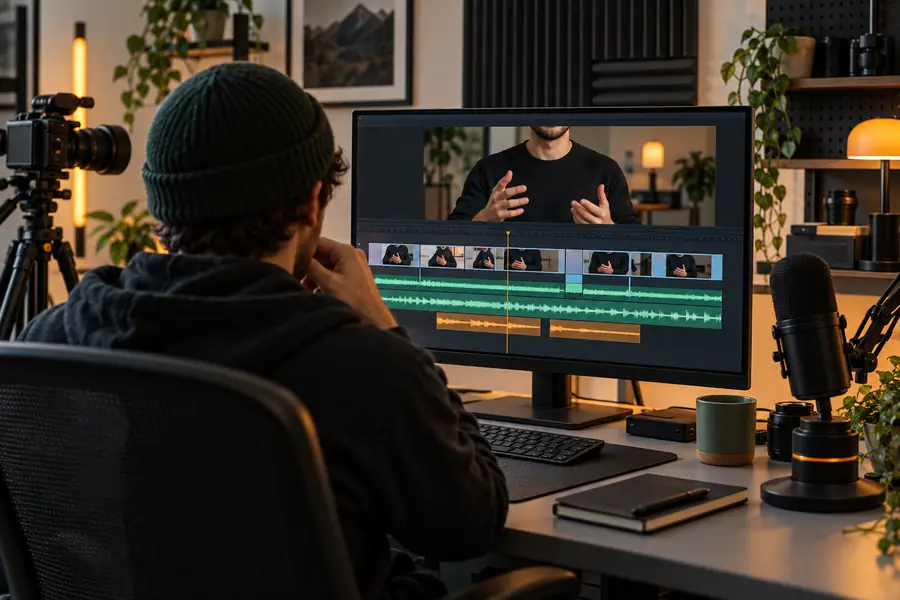
Video editing interface showing a preview and timeline Picture cut to review
Illustrative visual for sound planning in a YouTube video Sound-planning concept
The images illustrate a planning comparison, not a verified audio export. For this scene, test a restrained passing sound at the close shot and leave room for any voiceover.

Rights and publishing checks

A sound that fits the edit is not automatically cleared for publication. Check the terms that apply to the actual audio you use before uploading a video.

No automatic rights clearance

This guide cannot certify that an uploaded recording, a generated result, or a third-party effect is licensed for your channel, sponsorship, or other commercial use.

Workaround

Read the applicable source terms, retain permission records, and replace any audio whose usage rights you cannot establish.

No Content ID guarantee

Neither a fresh-sounding effect nor a successful private upload proves that a future claim will not occur.

Workaround

Keep source documentation, review platform notices, and make a replacement plan for sounds that may be disputed.

No substitute for a final listen

An effect that works on headphones may mask dialogue or spike in volume after export.

Workaround

Check the full rendered video on more than one playback device, including a phone speaker.

Manual sourcing versus an assisted draft

Mirelo may be one place to explore sound ideas, but the comparison below is about editing decisions, not a promise of particular product controls or output formats.

Manual sourcing
Assisted sound draft

Starting point

Manual sourcing

Search recordings by subject, place, and action.

Assisted sound draft

Describe the scene and the sound's intended role.

Fit to picture

Manual sourcing

Audition candidates against the cut.

Assisted sound draft

Audition any draft against the same cut.

Timing

Manual sourcing

Trim and place the selected recording.

Assisted sound draft

Check and adjust the draft's placement in the edit.

Dialogue

Manual sourcing

Reduce or remove sounds that mask speech.

Assisted sound draft

Apply the same speech-first mix check.

Rights review

Manual sourcing

Verify the recording's license and attribution terms.

Assisted sound draft

Verify the terms applicable to the result and any inputs.

Final decision

Manual sourcing

Keep the source that serves the scene.

Assisted sound draft

Keep the draft only if it serves the scene better.

Take the plan into your next edit

Start with one scene that needs sound

Choose a short section of your video, write down what the viewer should notice, and test a restrained sound idea against the picture. Mirelo is a starting point for exploration; the final mix and publishing checks remain yours.

Explore sound tools
  • Start from a specific scene
  • Protect speech and intentional silence
  • Review rights before publishing

YouTube sound questions

You can explore Mirelo while planning sound for a video, but check the product's current capabilities before relying on a particular workflow or export. Whatever audio you choose, test it against the picture and review the terms that apply to its use.

No sound tool or editing method can promise that an upload will avoid a claim. Keep records of licenses and permissions, and review any notice you receive through YouTube's own process.

Start with sounds that clarify an important action, such as a reveal or a change of step. Skip cues that repeat information the viewer already understands, and keep speech intelligible.

Listen to the exported video from beginning to end, not just to effects in the editor. Check dialogue, abrupt changes, and quiet details on headphones and an everyday speaker.

Start creating
Start creating